

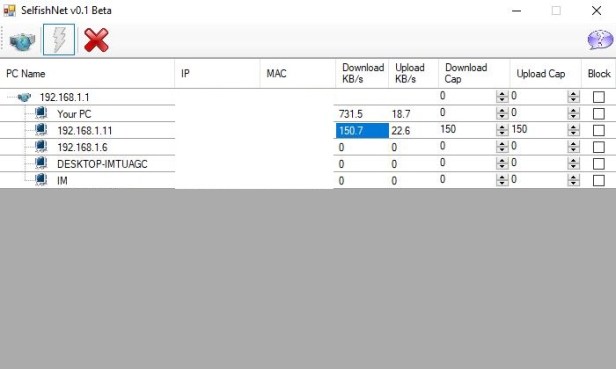
Today i’ll show how to control all connected connection with your router.
1) Download Selfishnet. Click Here To Download
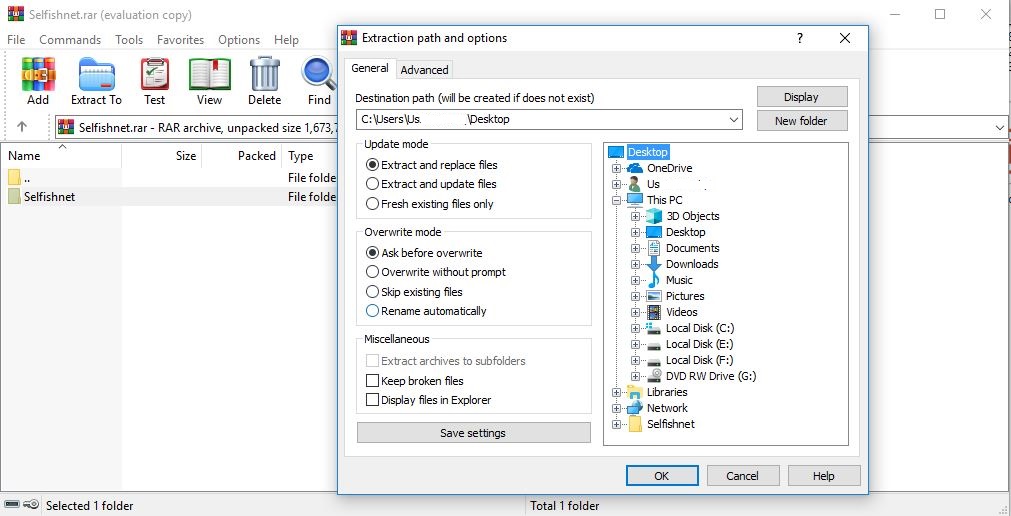
2) Open file and extract on desktop.
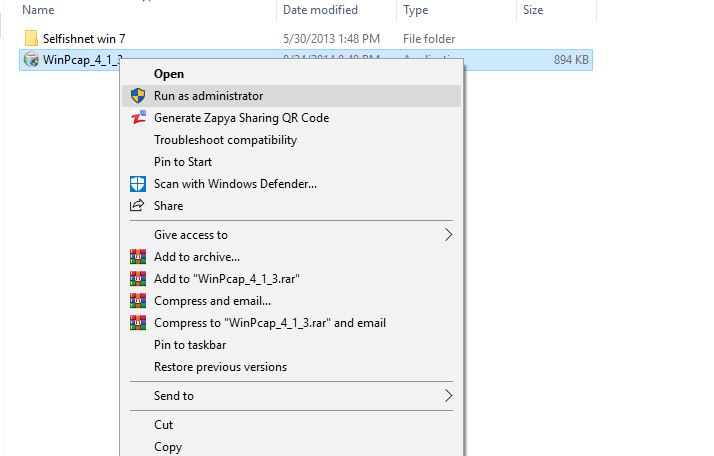
3) Install “WinPcap_4_1_3” first this is required file to run selfishnet.
//pagead2.googlesyndication.com/pagead/js/adsbygoogle.js (adsbygoogle = window.adsbygoogle || []).push({ google_ad_client: “ca-pub-5133306029386060”, enable_page_level_ads: true });
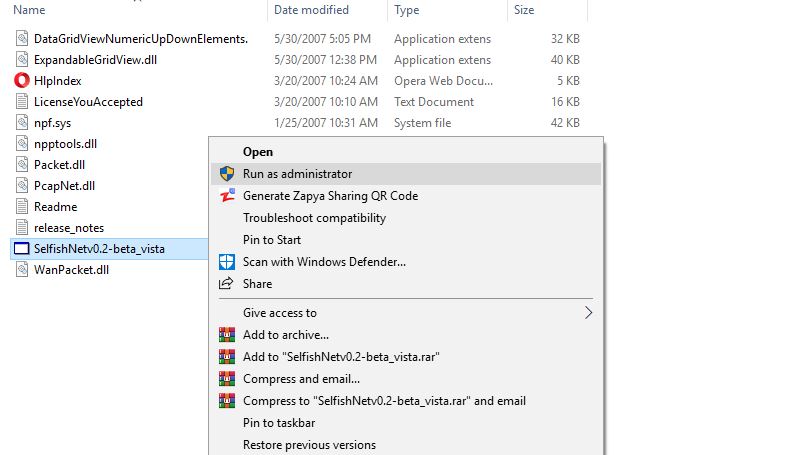
4) Open “selfishnet” folder and run “SelfishNetv0.2-beta_vista”.
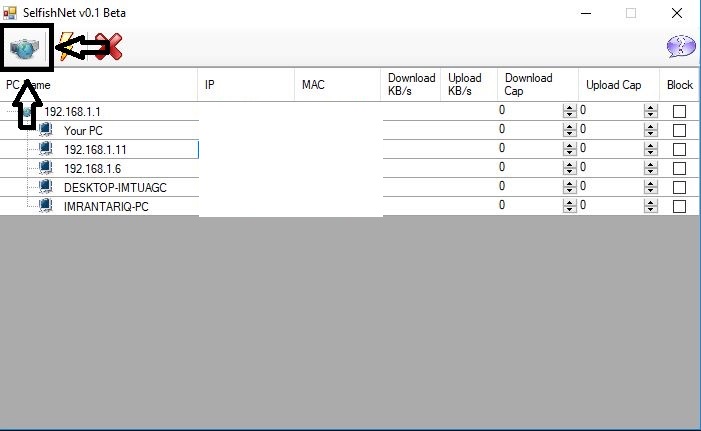
5) Click on “Network Discovery” to find connected connections.
//pagead2.googlesyndication.com/pagead/js/adsbygoogle.js(adsbygoogle = window.adsbygoogle || []).push({});
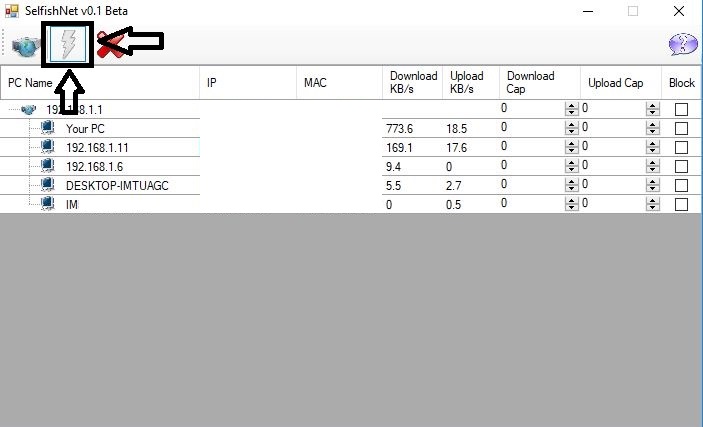
6) Click on”Start Redirecting-spoofing”.
//pagead2.googlesyndication.com/pagead/js/adsbygoogle.js (adsbygoogle = window.adsbygoogle || []).push({});
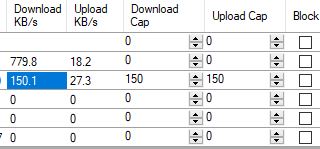
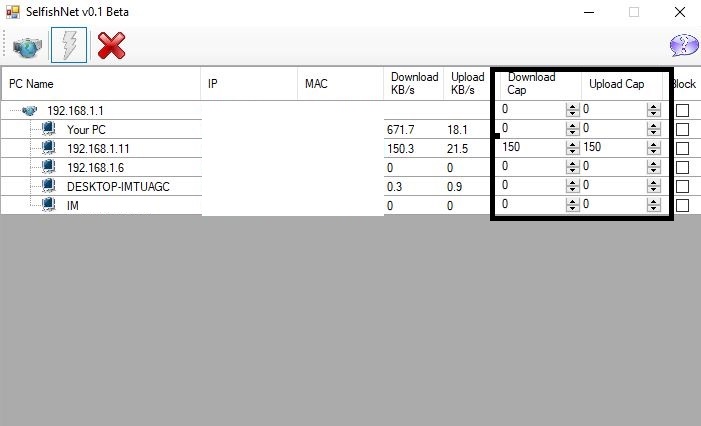
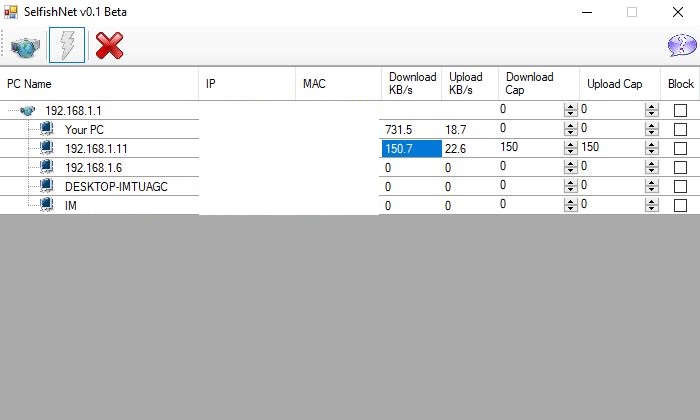
7) Now you can set download and upload speed on (download and upload cap).If you want to give 1Mbps down and up speed,set download and upload cap to 110.for 2Mbps set 220.
//pagead2.googlesyndication.com/pagead/js/adsbygoogle.js(adsbygoogle = window.adsbygoogle || []).push({});
8)If you want to give back origional speed change all value to zero or click on “Stop redirecting-spoofing”.
Thanks For Reading.Leave a comment if you have any other problem about your computer. //pagead2.googlesyndication.com/pagead/js/adsbygoogle.js(adsbygoogle = window.adsbygoogle || []).push({});
 TechExpertHub